
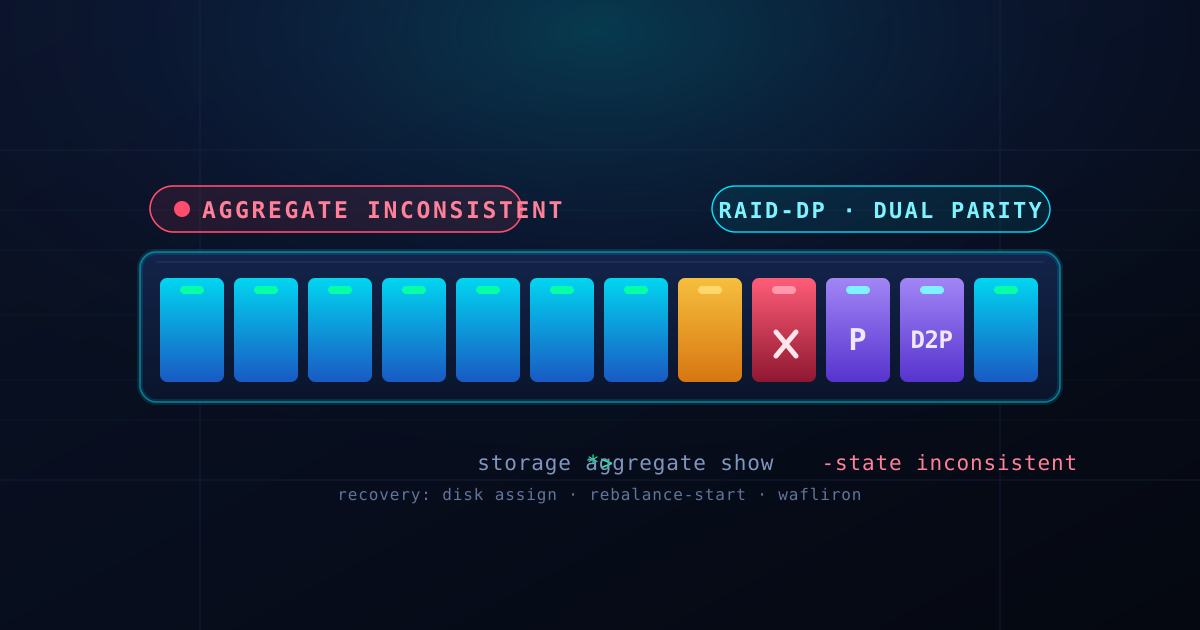
An "inconsistent aggregate" is one of the most alarming alerts you can see in a NetApp ONTAP cluster. When an aggregate flips to inconsistent state, one or more of its disks is marked as unavailable, the aggregate becomes degraded, and depending on your configuration, volumes on that aggregate may go offline automatically — taking applications and user access with them.
This guide walks you through diagnosing the root cause, recovering the aggregate, and preventing the condition from recurring.
What Does "Inconsistent" Mean?
In ONTAP terminology, an aggregate enters the inconsistent state when the storage system detects that a disk is either:
- Physically removed or failed.
- Disconnected from the storage system (SFP fault, cable issue, expander failure).
- Showing read/write errors or firmware incompatibility.
- Missing after a power cycle, node failure, or cluster peering disruption.
ONTAP marks the aggregate inconsistent as a protective measure — it is better to pause writes than to risk silent data corruption.
> Key point: An inconsistent aggregate is not the same as a failed aggregate. In many cases, the data is still intact and the aggregate can be recovered without data loss.
Common Causes
Understanding the root cause is critical before you take any recovery action.
| Cause | Symptoms |
|---|---|
| Disk failure | One or more disks show failed, unavailable, or missing in storage disk show |
| SFP / cable fault | Intermittent connectivity, disk drops in and out, errors in syslog |
| Expander board failure | Multiple disks go offline simultaneously on the same shelf |
| Firmware mismatch | Disks rejected after an ONTAP or drive firmware upgrade |
| Node crash / power loss | Aggregate goes inconsistent after a node reboots unexpectedly |
| Manual disk removal | An admin removed a disk without first putting it offline or evacuating data |
Step 1: Assess the Situation
Before making any changes, gather the full picture.
1.1 Check Aggregate Status
storage aggregate show -aggregate <aggr_name> -instanceLook for:
- The state of the aggregate (
online,offline,inconsistent). - The number of disks that are
unavailableormissing. - Whether parity disks are affected (this is more critical for RAID-DP).
1.2 Check Disk Health
storage disk show -owner <node_name>
storage disk show -container-type shared
Note the disk GUID and shelf location of any problematic disks.
1.3 Check System Logs
event log show -severity ERROR,CRITICALLook for messages about disk errors, SFP failures, expander communication loss, or firmware incompatibility.
1.4 Check for Affected Volumes
volume show -aggregate <aggr_name> -fields stateVolumes on an inconsistent aggregate are typically taken offline. Note which volumes were impacted.
Step 2: Diagnose the Root Cause
Scenario A: A Single Disk Has Failed
This is the most common scenario. If you have RAID-DP (dual parity) or RAID-4, the aggregate can tolerate one or two disk failures without data loss.
# Verify the failed disk
storage disk show -owner <node> -disk <disk_id> -instance

# Check if the disk is physically present but marked failed
storage disk show -unowned
If the disk is physically present but marked failed, you can attempt to reassign it. If it is physically missing, you must replace the disk first.
Scenario B: Multiple Disks Went Offline
Multiple simultaneous disk failures usually point to:
- Expander board failure — If all affected disks are on the same shelf and DBAG, the expander is the likely culprit.
- SFP / cable issue — A failed SFP can disconnect an entire chain of shelves.
- Power supply failure — A shelf PSU failure takes down everything on that shelf.
Check expander status:
expander show
sfp show
Scenario C: Firmware Mismatch
After an ONTAP or drive firmware upgrade, you may see disks rejected due to version incompatibility.
storage disk show -owner <node> -dbag <dbag_id> -instanceLook for fields like firmware-level and compatible in the disk instance output.
Scenario D: Aggregate Went Inconsistent After Node Failure
If a node crashed or lost power, the aggregate may come back inconsistent after reboot because the other node did not see the disks as part of the aggregate membership at the time of the crash.
# Check if the node returned all disks to the aggregate
storage failover show
Step 3: Recovery Procedures
Fix 1: Handle Disk Replacement (Disk Physically Missing or Failed)
- Insert the replacement drive into the correct slot (match the shelf, DBAG, and position).
- Assign the new disk to the aggregate:
storage aggregate disk assign -disk <new_disk_id> -aggregate <aggr_name>- Start the rebalance:
storage aggregate rebalance-start -aggregate <aggr_name>ONTAP should automatically start rebalancing, but verify:
storage aggregate rebalance-show -aggregate <aggr_name>> Warning: Rebalancing triggers a data sync. On large aggregates this can take hours or even days. Plan accordingly.
Fix 2: Recover from Expander or SFP Failure
If an expander or SFP fault caused multiple disks to go offline:
- Replace the faulty expander or SFP.
- Rescan the shelf (if not automatically detected):
storage shelf rescan- Check if disks come back online:
storage disk show -container-type shared- If disks are back, check aggregate state:
storage aggregate show -aggregate <aggr_name>The aggregate should return to online automatically. If it remains inconsistent, you may need to trigger a rebalance to ensure parity is current:
storage aggregate rebalance-start -aggregate <aggr_name>Fix 3: Handle Firmware Incompatibility
If disks are rejected due to firmware mismatch:
- Upgrade the disk firmware using the official NetApp firmware package:
storage disk firmware update -disk <disk_id>- Or, if ONTAP is the issue, upgrade the cluster to the version required by the drives.
- Verify the disk is now compatible and assigned to the aggregate.
Fix 4: Recovering WAFL Inconsistent Aggregates (Maintenance Mode)
In some cases, the aggregate is marked WAFL inconsistent. This happens when the file system structure is corrupted or a node crashed during a critical write. This cannot be fixed from the normal ONTAP CLI; you must enter Maintenance Mode.
- Boot the node into Maintenance Mode (via the LOADER prompt or reboot).
- Run
waflironon the affected aggregate:
wafliron -a <aggr_name>wafliron scans the WAFL file system and repairs inconsistencies.
- Verify the repair:
Once wafliron completes, it will report if the aggregate was repaired.
- Reboot the node to return to normal ONTAP operation.
> Critical Warning: Running wafliron can be time-consuming and may result in some data loss if the inconsistency is severe. Always ensure you have a recent backup and consult NetApp Support before running wafliron on production data.
Step 4: Post-Recovery Verification
Once the aggregate is back online, run these verification steps:
# 1. Confirm aggregate state
storage aggregate show -aggregate <aggr_name>

# 2. Verify all disks are online
storage disk show -aggregate <aggr_name>

# 3. Check rebalance progress
storage aggregate rebalance-show -aggregate <aggr_name>

# 4. Bring volumes back online if they were offline
volume online -volume <vol_name>

# 5. Verify volume health
volume show -volume <vol_name> -fields state,efficiency-policy,encryption-state

# 6. Check for any remaining errors
event log show -severity ERROR,CRITICAL
Step 5: Prevent Recurrence
An inconsistent aggregate is a symptom of an underlying infrastructure weakness. Take these steps to reduce the risk of recurrence:
- Set up disk and shelf monitoring alerts via SNMP or Syslog so you catch degrading hardware before it causes an outage.
- Keep spare drives on hand for your shelf model, pre-staged and firmware-matched.
- Maintain a consistent firmware baseline across all nodes and shelves. Use NetApp's Interoperability Matrix Tool to validate compatibility before any upgrade.
- Review RAID-DP redundancy — ensure your aggregates are configured with dual parity for protection against double-disk failures.
- Test your recovery procedures in a lab or staging environment. The worst time to learn a recovery procedure is during an outage.
- Document shelf layouts and DBAG assignments so you can quickly identify whether multiple disk failures share a common expander or power path.
When to Call NetApp Support
Contact NetApp Support if any of the following apply:
- Multiple disks have failed and you have no redundant parity to absorb the loss.
- The aggregate reports data loss or corruption errors.
- A firmware upgrade left the aggregate in an unrecoverable state.
- You are unable to identify or access the failed hardware.
- You need to run advanced diagnostic tools such as
aggr status-dumpor disk-level diagnostics.
When you call, have the following information ready:
- ONTAP version (
cluster version show) - Aggregate and disk IDs affected
- Output of
event log show -severity ERROR,CRITICAL - Any recent changes (firmware upgrades, hardware replacements, power events)
Summary Checklist
- Run
storage aggregate showto confirm inconsistent state and affected disks - Run
storage disk showto identify failed, unavailable, or missing disks - Review event logs for root cause indicators
- Determine whether the cause is disk failure, expander/SFP fault, firmware, or WAFL inconsistency
- Replace faulty hardware or run
waflironin maintenance mode as appropriate - Trigger
storage aggregate rebalance-startto rebuild parity - Verify all disks online and aggregate back to
onlinestate - Bring volumes back online and confirm application access
- Set up proactive monitoring and keep spare drives on hand
Need Help?
An inconsistent aggregate can be stressful, but most recoveries are straightforward once you understand the root cause. Our engineers have recovered hundreds of inconsistent aggregates across NetApp FAS, AFF, and E-Series platforms — from single-disk failures to full shelf outages.
If your environment is in a critical state or you need a second set of eyes on the recovery plan, reach out to our 24/7 NOC.